Poetry Camera user manual
Turning on the camera
Press the shutter button and wait for the light to turn on.
Connecting to WiFi
- The camera will look for WiFi when starting up. If it cannot find any WiFi, the light will turn into a blue spinner.
- Create a QR code with your WiFi network & password
- Hold the camera 6 inches in front of the QR code to scan, and wait for the light to turn white. You do not need to press the shutter button.
- The light will blink in white when it recognizes the WiFi QR code and is trying to connect. If the light is not turning white, move the camera around a bit and make sure you're in good lighting.
The camera will remember the last WiFi network it connects to.
If you are moving out and about, we recommend connecting to a cellular hotspot for a reliable connection. You can use the hotspot on your phone, or a dedicated hotspot device.
Capturing a poem
- Click the shutter button.
- The timestamp will print first.
- Wait up to 10 seconds for the poem. The light blinks white while the camera is thinking, then the rest of the poem will print.
- Tear the poem off by pulling down and across.
For your privacy, we never store your photos anywhere or use them for AI training.
Changing the poem format
Turn the knob!
Default modes
- Haiku
- Receipt
- Limerick
- Sonnet
- Alliteration
- Portrait mode
- Free verse
You can edit these modes in your customization portal:
- December 2025 batch (v5.1+): my.poetry.camera
- Earlier cameras (v5): app.poetry.camera — requires a customization access code. Contact [email protected] for your code.
Charging the camera
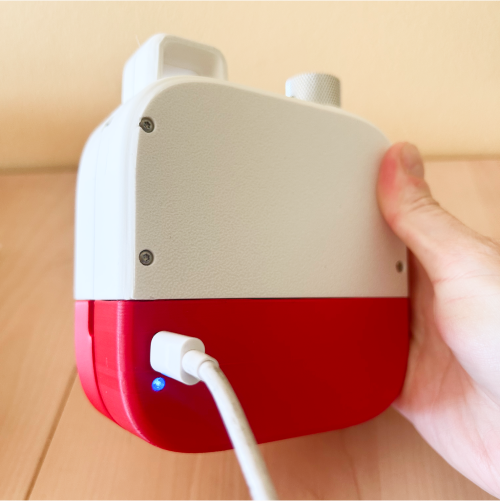
- Plug a charger in to the USB-C port on the back of the camera. Don't use the camera while it is charging!
- The light by the charging port should shine blue.
- Once the camera is done charging, the light will turn green.
Changing the paper
- Open the printer door of the camera by using both hands to pop up the door.
- Replace the roll of paper. Orient it "over" rather than "under."
- Pull out a bit of paper so it can catch in the printer door. In the Dec 2024 prototype, you may need to remove ~6-12 inches of paper from the fresh roll for best results.
- Close the printer door. You're ready to print!
Need more paper? Use 58mm (2.25") wide, coreless, 16' rolls of thermal paper. We recommend these rolls from First Choice Paper on Amazon.
Don't use paper that contains BPA/BPS, which can negatively impact your health! The paper we shipped with your camera is BPA-free.
Turning off the camera
- Press and hold the shutter button for 5 seconds.
- The ring of lights will turn off.
If you forget to turn off the camera, it will also just go to sleep automatically after a few minutes.
Troubleshooting
Most likely we'll suggest you charge the camera, or turn it off and on again. Email [email protected] for help!
Camera prints fine, but can't write poems
Does the camera have WiFi? Try restarting the camera to see if it's able to connect to WiFi.
If the camera is connected to WiFi, is the WiFi network online & stable? If you are using a cellular hotspot, does the hotspot have data? try waiting 5 seconds and then take another picture. Sometimes you just need to wait a bit for everything to get up and running.
If it fails for multiple poems but your WiFi is fine, there's likely a problem with our poem-writing software. Please report this bug to [email protected] ASAP.
Camera not connecting to WiFi
If you are having trouble scanning the WiFi QR code, make sure you're in good lighting. Try moving the camera around, slowly, with the QR code 6 inches away from the camera lens.
Try charging the camera.
Are you in a public location with a WiFi network that requires you to provide information before logging in? (e.g. with a captive portal?) Unfortunately, the camera may not work in those scenarios.
Are you in a crowded location? Sometimes all devices have trouble connecting to WiFi when it's crowded. Try moving to a less crowded location.
As always, email [email protected] to let us know about the details of this WiFi connection issue.
Camera not turning on
Likely low battery. Try charging it!
Does the blue light by the USB-C port turn on when you charge? If so, keep waiting.
If it doesn't respond after charging, email [email protected]
Camera turns on, but doesn't react to button presses
Is the light spinning around blue? If so, it needs to connect to WiFi!
Does the camera have paper? If not, refill the paper.
If it's still not reacting to button presses, email [email protected]
Camera flashing a red light
This means some crash has occurred, possibly due to low battery. Try charging the camera for a bit. If that doesn't help, email [email protected].
Paper is jamming
The camera prints best when you are holding it upright. It may jam when you are holding it upside-down or if it is lying down on a table.
It does print better with slightly smaller rolls of paper.
Printouts are super light
This usually happens when you are low on battery. Try charging it!
Print quality may also be affected by the paper you use. We recommend this brand of paper.
Feedback? Ideas?
We're all ears! [email protected]